Setup guide
Everything from installing the app to your first live sync. Most teams finish in under an hour without a developer.
1
Before you start
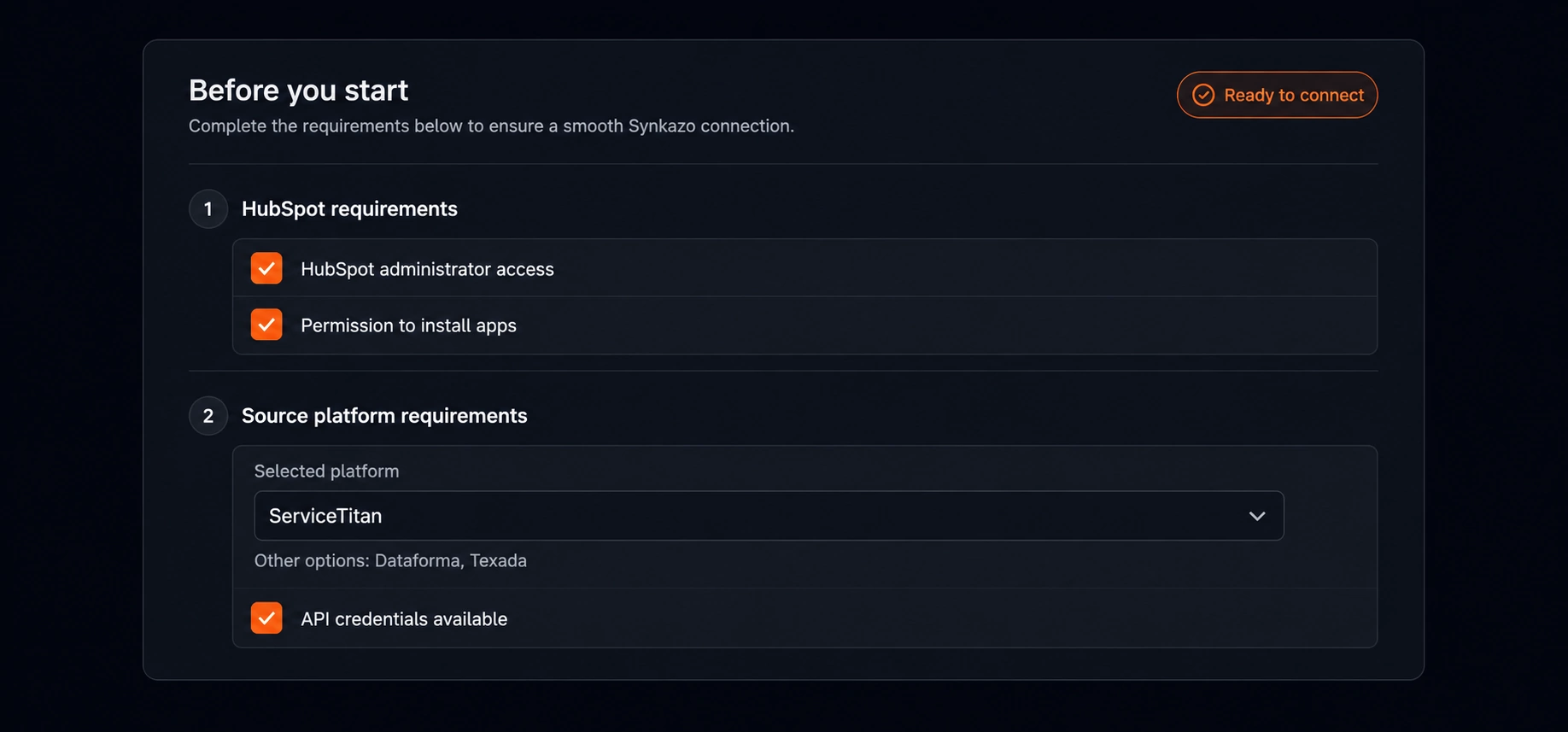
You need admin access to your HubSpot account and to your field-service platform. The whole setup takes about an hour, and no developer is needed.
HubSpot: Super Admin or a user with app-install permission
ServiceTitan: access to Settings → Integrations → API Application Access
Dataforma: access to Admin → API Access
Texada: access to Account → Integrations → API Tokens
2
Connect HubSpot
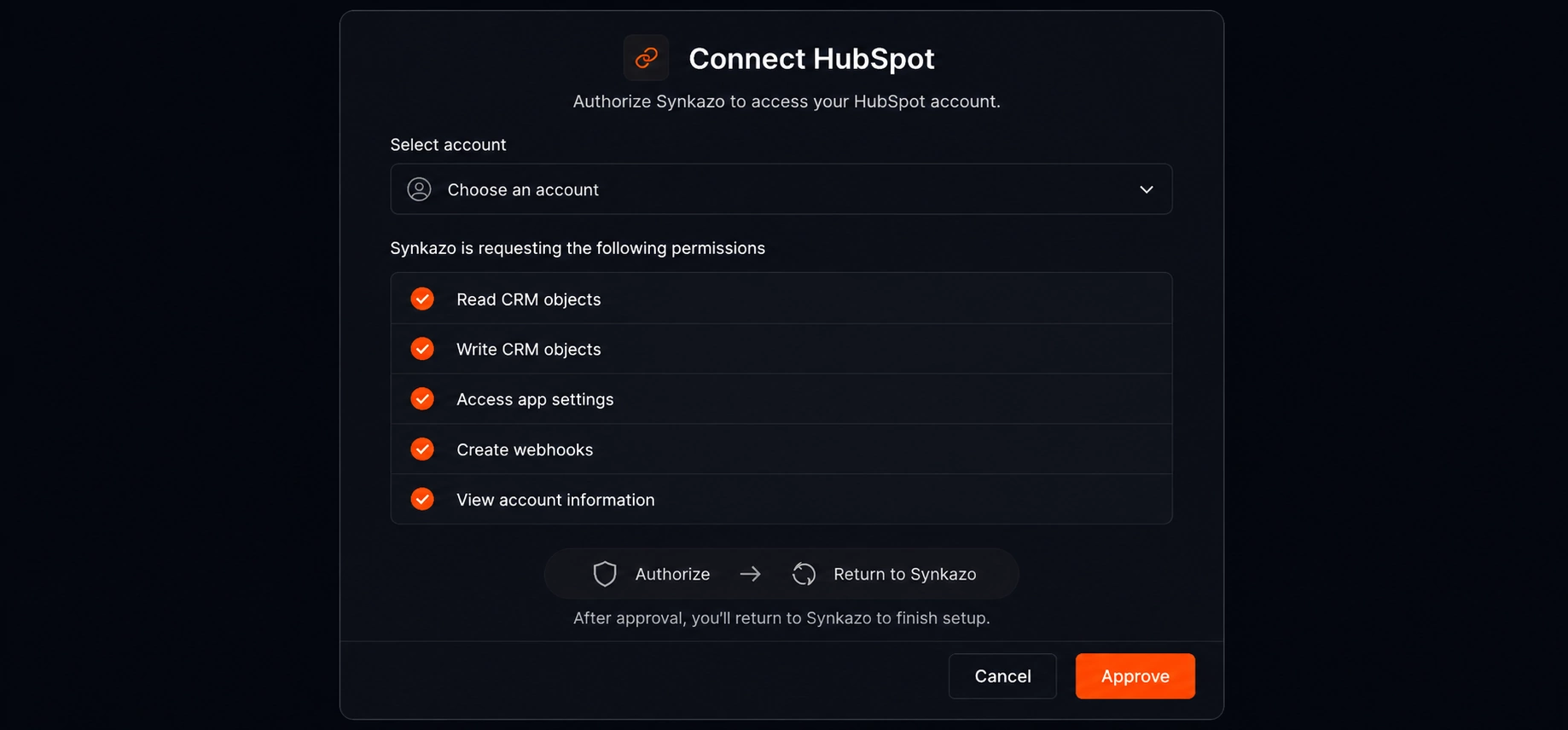
From the marketplace listing or synkazo.com/install, click Connect HubSpot. You are taken to HubSpot to choose the account and approve access.
Choose the HubSpot account you want to sync
Review the requested permissions and approve
You are returned to synkazo with HubSpot connected
3
Connect your field-service platform
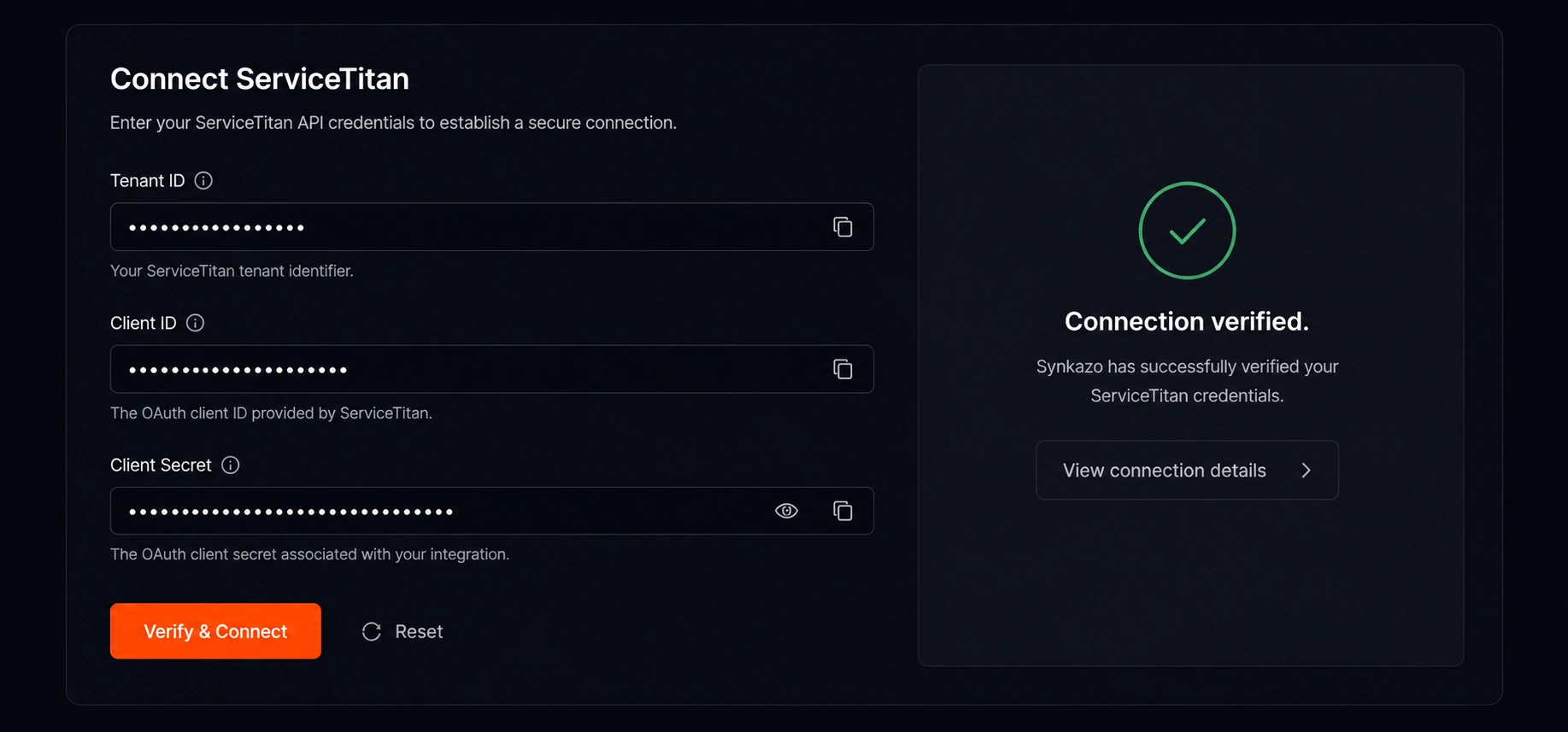
In the dashboard, choose your source platform and paste its API credentials. synkazo verifies them immediately, so you know at once whether they work.
Pick your source platform
Paste the credentials — each field links to where to find it
Click Verify & Connect
4
Create your first sync rule
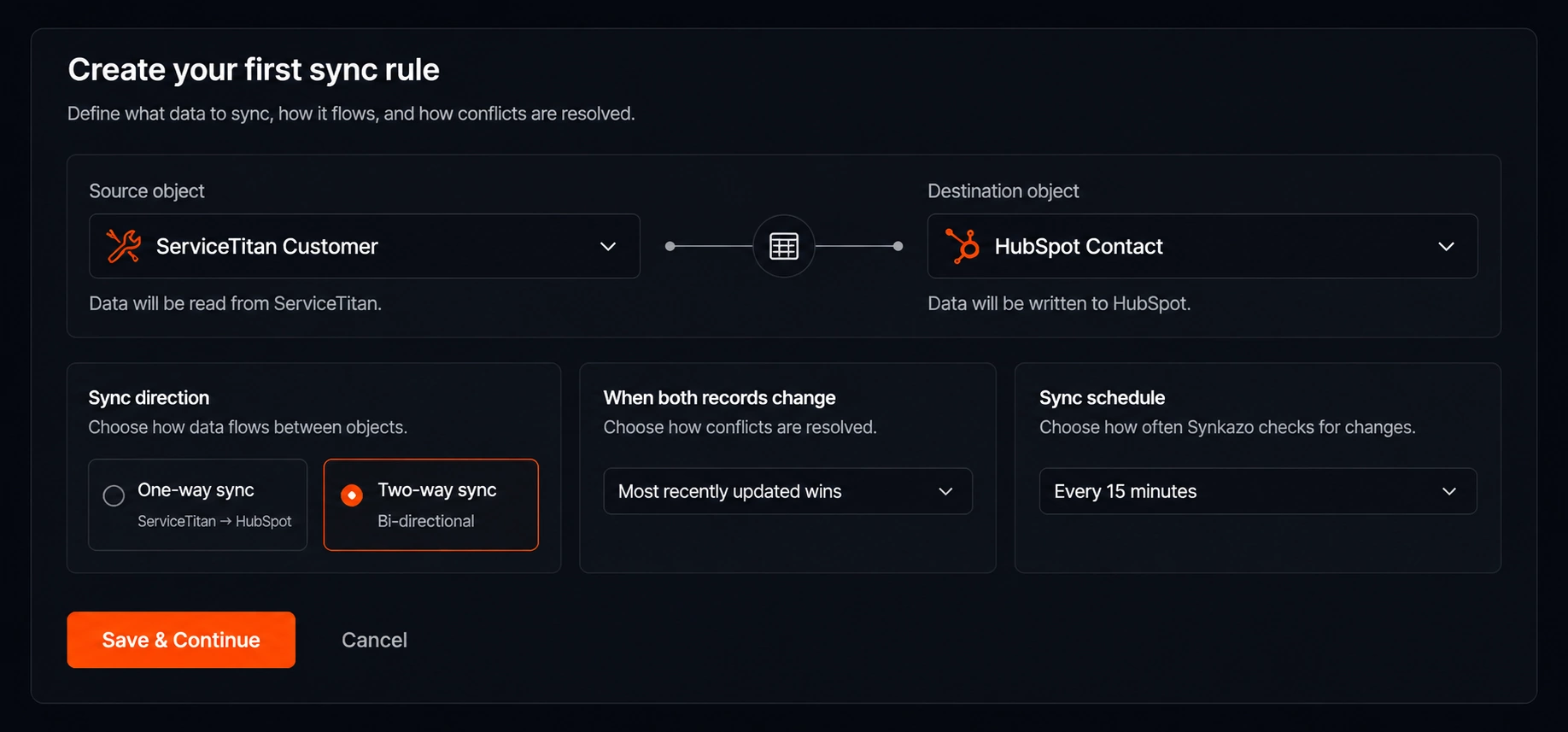
A sync rule is one object pair — Customers to Companies, for example. Choose what to sync, which direction, and how often.
Pick the source and destination object
Choose one-way or two-way, and the winning side for conflicts
Set a schedule — daily, hourly, or as often as every 15 minutes on Enterprise
5
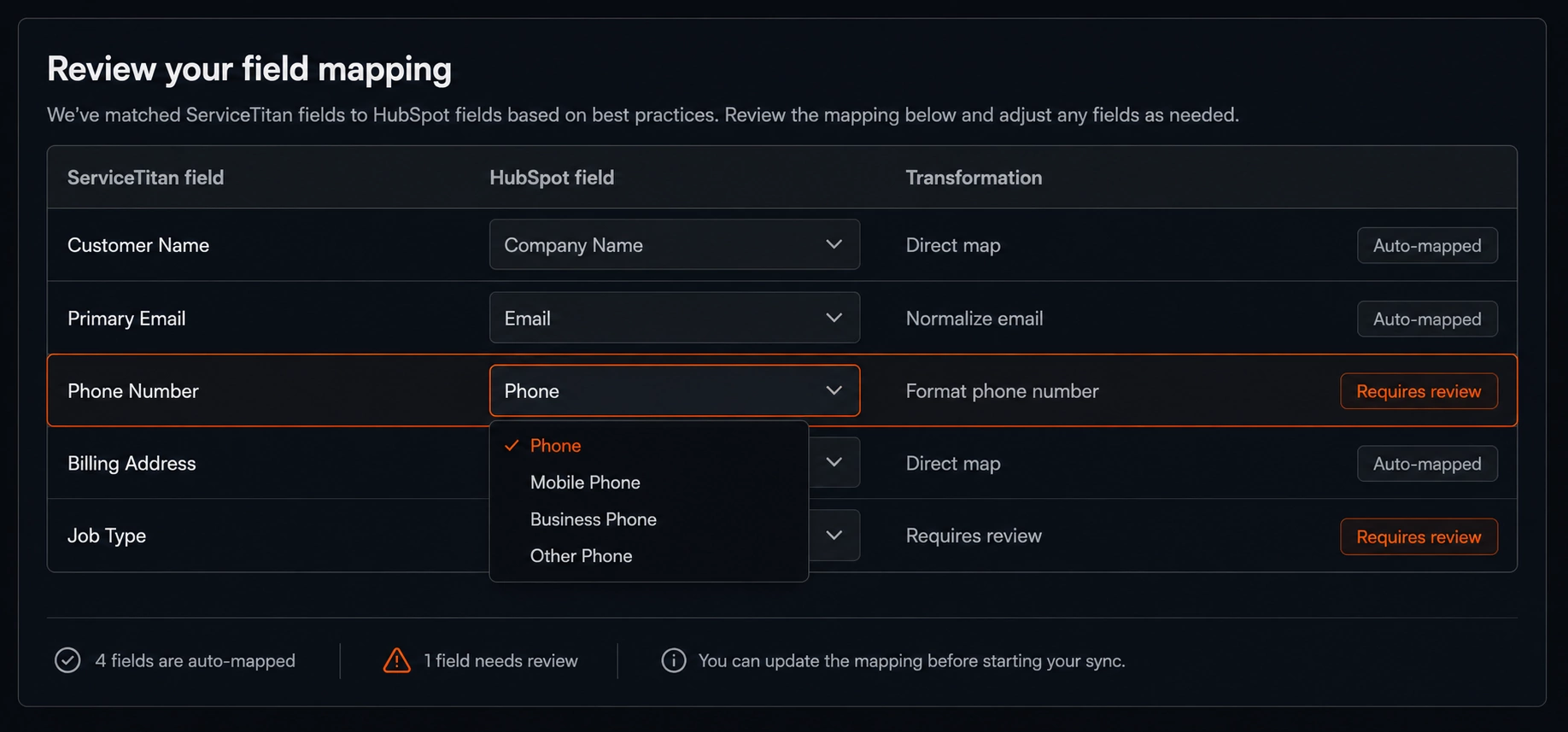
Review your field mapping
Auto-map matches fields by name, alias and type — usually most of them on the first pass. You only review what needs a decision.
Accept the auto-mapped fields, or adjust any of them
Set the match field — this is how records are recognised, so updates never duplicate
Add transformation rules if a value needs reshaping
6
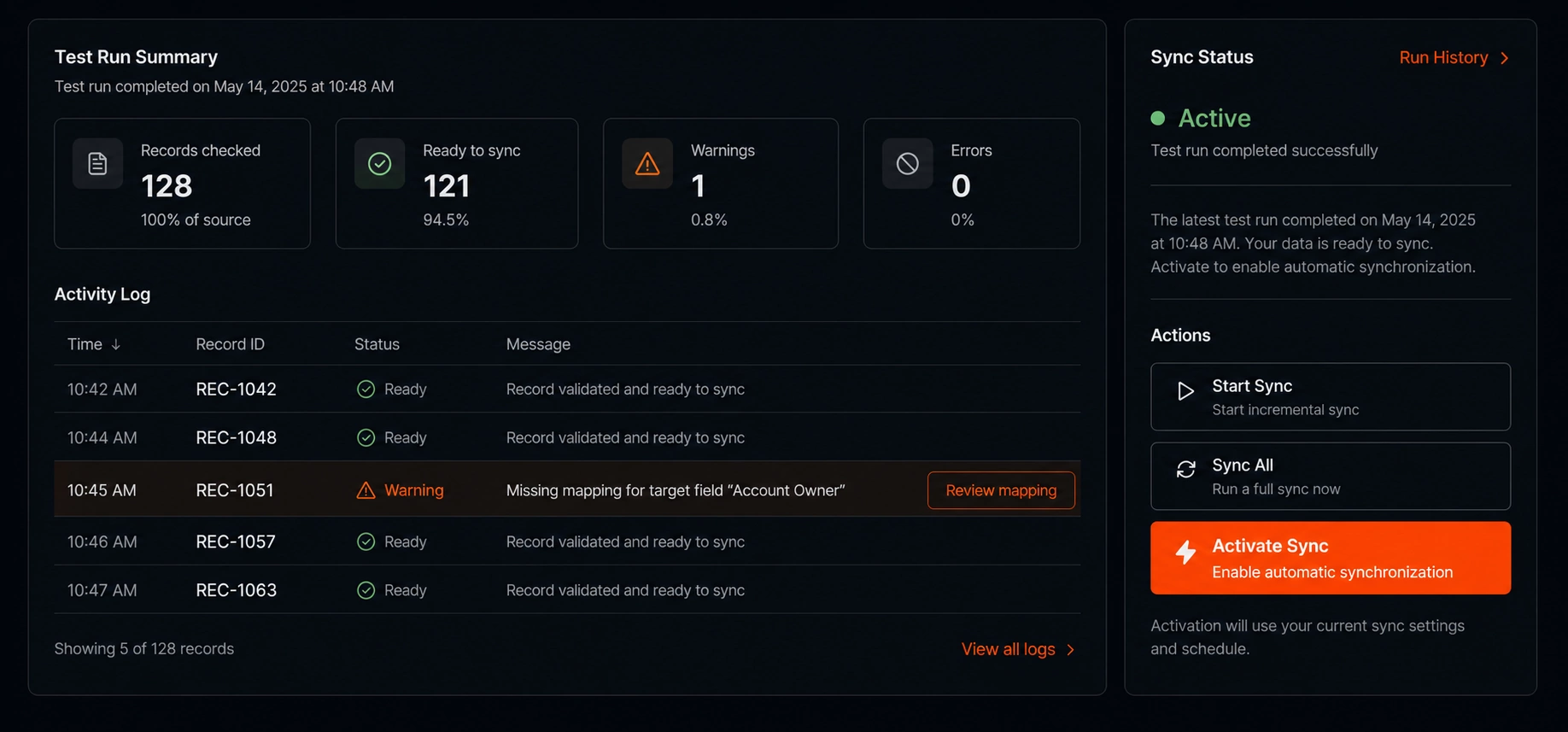
Test, then go live
Run a test sync against a small batch before you activate. When the results look right, switch the rule on.
Run a test sync and check the activity log
Fix anything the log flags
Activate the rule — it then runs on its schedule
Troubleshooting
Credentials rejected
Check every value is copied without trailing spaces, and that the API application is active in the source platform. For ServiceTitan, the App Key, Client ID, Client Secret and Tenant ID must come from the same API application.
Records not appearing in HubSpot
Open the activity log for that sync rule. Each skipped or failed record is listed with the reason — most often a required HubSpot property is missing from the mapping.
Duplicate records created
This means no match field was set, or the match field is empty on some records. Set a match field with a reliably-populated value, such as email or an ID field.
Sync says "reconnect HubSpot"
The app was uninstalled in HubSpot or its permissions changed. Click Reconnect in the dashboard — nothing is lost, and mappings are preserved.
A field will not map
Field types must be compatible. If synkazo flags a mismatch it will propose a conversion — accept it, or map to a different property with a matching type.
Uninstalling and data deletion
Pause any active sync rule from Dashboard → Sync Rules, or uninstall the app in HubSpot under Settings → Connected Apps. Either stops all syncing immediately.
Uninstalling revokes our access token — we can no longer read from or write to your HubSpot account.
Records already synced remain in both systems. synkazo does not delete data it has written.
To have your synkazo account and its stored credentials and logs deleted, email [email protected]. We action deletion requests within 30 days and confirm by email.
Stuck on a step? Email [email protected] — a person who knows the product replies, usually the same day. See also our support page and FAQ.